
OKX · Strategy Hands-On
How to Wire OKX's Signal Bot to TradingView Alerts
OKX's Signal Bot exists for one job: taking alerts from TradingView. You create a signal on OKX, get back a Webhook URL and a string called a signalToken, paste both into the alert, and when the alert fires OKX places the order the message describes. There is no backend for you to build.
The boundaries are worth stating up front: it currently supports perpetual futures only, not spot, and it holds positions in one-way mode. What follows walks the chain in order — create the signal on OKX, fill in the TradingView alert, read the message fields, then work out why nothing traded.
What it can and can't do
The table below follows OKX's help-centre Trading Signal Bot FAQs:
| Item | What OKX says | What that means in practice |
|---|---|---|
| Instruments | Perpetual futures only for now, spot not supported; leverage is configurable | If what you wanted was auto-buying spot off a TradingView signal, this is a dead end |
| Position mode | One-way: one direction per pair at any moment, though different pairs can be long and short at the same time | Holding a long and a short in the same coin at once is off the table |
| Multiple pairs | One bot can cover several pairs; signals for pairs you didn't select at setup are filtered out | The alert fires on ETH but the bot only has BTC ticked — that signal places nothing |
| Several bots on one signal | Two or more can run off the same signal, each with its own pairs, leverage and margin | One alert can drive a few different margin setups side by side |
| Demo trading | Supported. Path: Trade → Demo trading → Trade → Trading Bots → Marketplace → Signal bot → Create | Get the whole chain working on demo before anything real rides on it |
| Partial take-profit, reversals | Tiered take-profit is supported (50% and 100%, say, encoded in TradingView and sent as separate alerts); a reversal needs one message stating the new direction and size, with no separate close first | Exit logic lives in your TradingView script and goes out as several alerts |
It only acts on the messages it receives, so how good the signals are comes down entirely to the logic you wrote in TradingView.
TradingView's webhook notifications aren't in the free Basic plan: the feature table on its pricing page puts them at Essential and up (checked 2026-09; plan names change). Its documentation also says webhook alerts require two-factor authentication to be switched on first, that only ports 80 and 443 are accepted, that a request is void if the receiving end hasn't finished within 3 seconds, and that delivery shows up in the Webhook status column of the alert log.
Creating the signal on OKX: Webhook URL and signalToken
For live trading, follow OKX's guide on setting up a Signal Trading bot with TradingView:
- Log in to OKX and go to Trade → Trading Bots → Marketplace, pick the Signal bot tab and select Create.
- Select Add custom signal, name the signal and add an optional description (up to 500 characters), then select Create signal.
- OKX generates that signal's Webhook URL and alert message specification for you. The signalToken sits in the recommended alert message on the signal's detail page.
The signalToken is that signal's authentication credential. It is unique to the signal and has to be copied into the TradingView alert message exactly as issued. Treat it like a password: don't screenshot it into a group chat, and don't leave it sitting in a Pine script you publish.
There are two Webhook URLs, one per environment. OKX's help centre gives them as:
| Environment | Webhook URL |
|---|---|
| Live trading | https://www.okx.com/algo/signal/trigger |
| Demo trading | https://www.okx.com/pap/algo/signal/trigger |
The only difference is the /pap, which the eye skips straight past. When nothing at all shows up in Events history, OKX points you at whether the URL matches the one in the signal configuration — a demo signal pointed at the live address, or the reverse, is exactly this case.
If you didn't save the URL or the message template, you can see them again: open Details on the signal in the signals view, or go in through the signal configuration link in your bot's details.
Filling in the TradingView alert: start from what your script is
OKX hands you two templates when it creates the signal. Which one you want depends on what you're running in TradingView:
| What you have | Template to use | Watch out for |
|---|---|---|
| A Pine strategy using strategy.* functions | The TradingView template | If the strategy also calls alert(), set the alert condition to Order fills only |
| An indicator script (alertcondition()) | The Custom template | One action per alert |
| An alert you drew by hand on the chart | The Custom template | Same again |
| Your own program sending the request | The Custom template | A fixed IP has to clear support first — see the limits section |
Strategy scripts. OKX's worked example is an RSI14 strategy. On the TradingView chart, pick a USDT perpetual pair, add the strategy, and create an alert:
- if the strategy code also calls
alert(), set Condition to Order fills only; - paste OKX's TradingView template into the message box;
- tick Webhook URL under Notifications, paste in the address OKX gave you, and select Create.
The template already has investmentType set to base — order size counted in the base currency — so you can paste it as it comes. The Signal Bot converts that base-currency amount into OKX contracts itself.
Indicator scripts and manual alerts. In an indicator you define the condition with alertcondition(). OKX's example is MACD: the golden-cross alert takes the ENTER_LONG template, the death-cross alert takes EXIT_LONG. Its manual-alert example fires ENTER_LONG when RSI crosses up through the oversold line at 30. For expiry you can pick Open-ended alert.
One rule OKX marks as important: of ENTER_LONG, EXIT_LONG, ENTER_SHORT and EXIT_SHORT, one alert carries exactly one. You can't pack all four templates into the same message box — opening a long and closing it are two separate alerts.
With the alert built, go back to the signal page on OKX, select Use signal, set the pairs, the leverage and the margin you're putting in, and the bot is created.
What each field in the message means
OKX's Trading Signal Bot Alert Message 2.0 Specifications comes in two halves: Section A for Pine strategies built on strategy.* functions, and Section B, the universally compatible format that indicators, chart alerts and manual alerts all use. The two are compatible, and OKX works out from the message which one it received.
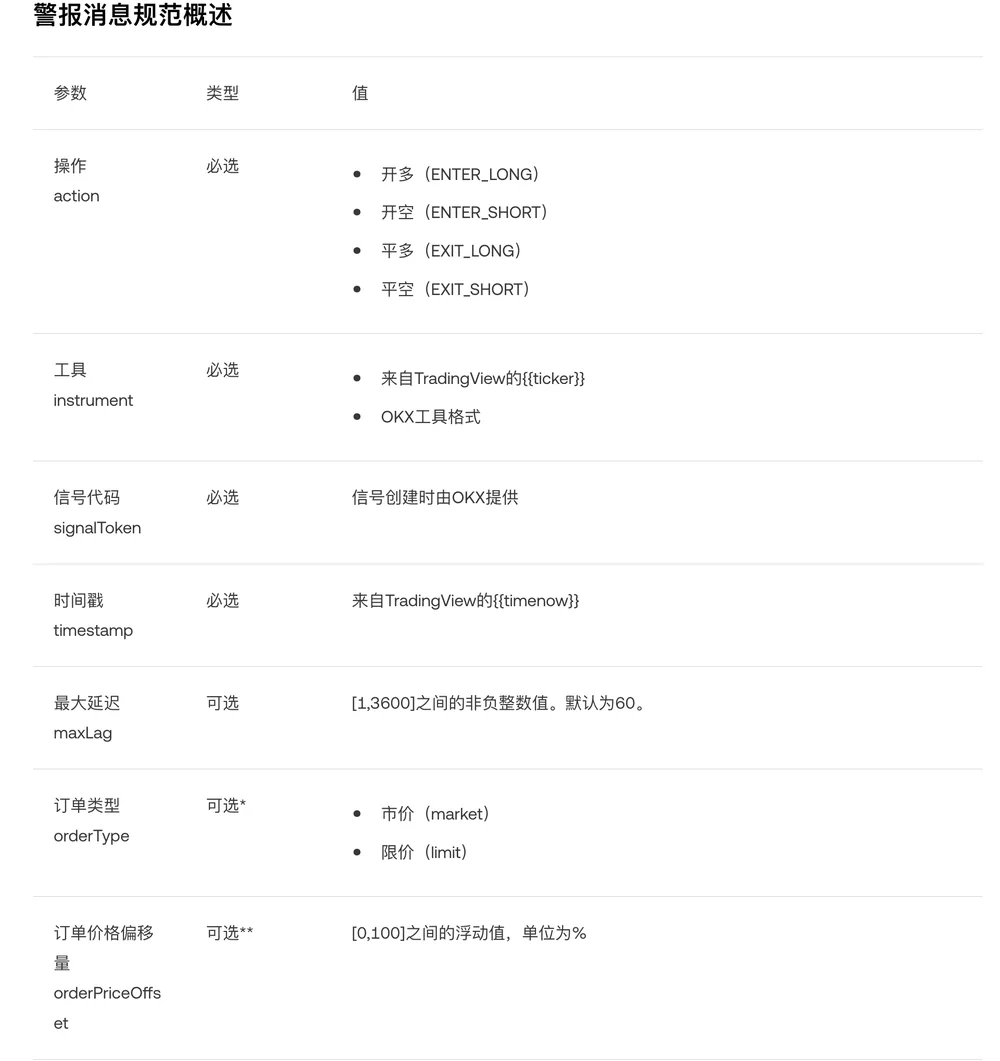
Read the Section B parameters like this:
| Field | Required? | What goes in |
|---|---|---|
action | Required | ENTER_LONG open long / ENTER_SHORT open short / EXIT_LONG close long / EXIT_SHORT close short |
instrument | Required | The TradingView placeholder {{ticker}}, for example BTCUSDT.P; or OKX's instId, for example BTC-USDT-SWAP |
signalToken | Required | The string generated when you created the signal |
timestamp | Required | {{timenow}}, which returns UTC time formatted like 2023-06-01T17:38:10Z |
maxLag | Optional | Maximum acceptable delay in seconds, an integer from 1 to 3600 |
orderType | Optional* | market or limit |
orderPriceOffset | Optional** | Limit price offset, 0 to 100, in % |
investmentType, amount | Optional* | Investment type and amount |
What the asterisks mean: * if you configured no settings at all when creating the bot, these have to be written into the message; ** required when the order type is limit.
The two messages below follow Example 1 in Section B of OKX's specification: open 10 contracts long, then close the long position in full.
{
  "action": "ENTER_LONG",
  "instrument": "BTCUSDT.P",
  "signalToken": "your signalToken",
  "timestamp": "{{timenow}}",
  "orderType": "market",
  "investmentType": "contract",
  "amount": "10"
}
{
"action": "EXIT_LONG",
"instrument": "BTCUSDT.P",
"signalToken": "your signalToken",
"timestamp": "{{timenow}}",
"orderType": "market",
"investmentType": "percentage_position",
"amount": "100"
}In OKX's examples the values are all quoted strings, and the examples themselves carry no maxLag.
investmentType in Section A. Entry signals default to percentage_investment, exit signals to percentage_position. OKX strongly recommends setting investmentType to base and amount to {{strategy.order.contracts}}, which keeps the size OKX trades in line with the size your TradingView strategy uses. The TradingView template OKX generates is written that way already, with maxLag set to 60.
When you use base, the three order-size modes in TradingView's strategy properties translate as follows (the worked numbers are OKX's own):
| TradingView order size mode | How the Signal Bot reads it | OKX's example |
|---|---|---|
| Contracts | A quantity of the base currency | — |
| Currency value | The quote-currency amount converted into base currency | ETHUSDT.P at 1000, size 100 → 0.1 ETH |
| % of equity | A share of capital converted the same way | Initial capital 10000, 10%, price 1000 → 1 ETH |
The investment types Section B lists: for entry signals, a fixed margin, a fixed number of contracts, a percentage of available balance, or a percentage of your active investment; for exit signals, a percentage of the open position. The base for that last entry option moves — put in 1000 USDT at creation, top up another 1000 USDT later, and the base becomes 2000 USDT.
When the message carries no order fields and the bot has none set either, the specification spells out the fallback: entry signals go out as market orders sized at 100% for a single-pair bot and 50% for a multi-pair one, and an exit signal closes 100% of the open position. Where both are set, the bot's own parameters win — bot on market, signal saying limit, and it goes market. The asterisk note on the same page's parameter table says the opposite, that those parameters are required when nothing was configured at creation; the two don't line up. The safe move is to configure the bot properly, or write the fields out in full in the message.
For limit orders, the price comes out of the four formulas in the specification. In OKX's notation, Bid-1 means the best bid and Ask-1 the best ask; the "-1" is the first level of the order book, not a subtraction:
| Action | Limit price |
|---|---|
| ENTER_LONG | [1-(orderPriceOffset/100)] * Bid-1 |
| ENTER_SHORT | [1+(orderPriceOffset/100)] * Ask-1 |
| EXIT_LONG | [1+(orderPriceOffset/100)] * Ask-1 |
| EXIT_SHORT | [1-(orderPriceOffset/100)] * Bid-1 |
So opening a long and closing a short never price above the best bid, and opening a short or closing a long never price below the best ask. An offset of 0 sits right on the best bid or ask, and the larger you make it the further away you sit.
The maxLag default. The English specification page gives 60 seconds in both places, the parameter table and the maxLag section; the Chinese edition of the same page says 30 seconds in its body text. Either way, the habit worth keeping is to write maxLag into every alert message instead of leaning on a default. What it caps is the number of seconds between TradingView sending (the timestamp field) and OKX receiving and processing, and it takes 1 to 3600. Set it too tight and any small hold-up between the alert firing and OKX handling it gets you the maximum-allowed-lag error; set it too loose and the check stops catching signals that turned up long after the fact. Pick a number against your timeframe and how much slippage you can live with, and hard-code it in the message.
Alert fired but nothing traded? Look up what you're seeing
The Trading Signal Bot FAQs set the order of checks in two steps: first the TradingView alert log, to confirm the alert really did fire; then refresh Events history in the bot's details on OKX and look for a record around the trigger time. Signals coming in from TradingView are logged there, errors in the message included. Find your situation in the table:
| What you're seeing | Where the problem is | What to do |
|---|---|---|
| No trigger for it in the TradingView alert log | The alert never fired | Back to TradingView: check the alert condition, and whether the expiry has passed |
| The alert log shows a trigger, Events history on OKX has no record | The address or the signalToken doesn't match | Check the Webhook URL against the one in the signal configuration (don't mix live and demo); check the signalToken is identical |
| Webhook status in the TradingView alert log shows delivery failed | The request never reached OKX | Check the Webhook URL in the alert for a paste error; confirm two-factor authentication is still switched on for the TradingView account |
| There's a trigger but no order, and the pair in the alert isn't ticked in the bot | Signals for pairs you didn't select get filtered out | Add the pair to the bot, or change the instrument in the alert |
| Events history has a record reading Incorrect type of instrument (51000) | The instrument format is wrong | Change BTCUSDT to BTCUSDT.P, or switch to BTC-USDT-SWAP |
| An error about the maximum allowed lag time being exceeded | More than maxLag went by between the timestamp and OKX receiving and processing it | Raise maxLag; if you've left plenty of room and it still errors, contact OKX support |
| Events history has a record and the error mentions order size or the minimum order size | The size is too small | Increase it; contract sizes differ between demo and live, so a size that works on demo needs recalculating once you switch |
| You already hold positions in other pairs, an entry alert for a new pair fired, and nothing opened | The Max position count limit stopped it | See point 2 in the next section |
| The bot sits on awaiting signal | It hasn't had an entry signal yet | Wait for one. Unlike copy trading, there's no way to say when it will trigger. If the TradingView log already shows an entry trigger, work through row 2 |
If Events history has a record but the error isn't in the table, open the detail and take the message field by field against the alert message specification.
Five limits to know before you go live
1. There's a cap on signals. Up to 500 custom signals in live trading, up to 100 in demo.
2. Max position count will block signals. The parameter caps how many positions in different underlying assets you can hold at once. A new signal that would push the total past the cap gets blocked, and so does a new signal arriving while the order for the most recent new position is still going through. Adding to a position in the same asset doesn't count towards it — that's governed by Allow multiple entries. With several pairs on one bot, set this number against how often your signals fire.
3. Backtested APY in the Signal Marketplace already has fees in it. Scroll down the Trading Bots page and you'll find the Signal Marketplace. OKX has said trading fees are now folded into the backtest and the historical data was fully recalculated, so a lower figure is normal rather than a sign the signal got worse. Backtests use the Level 1 perpetual futures rate: 0.02% maker, 0.05% taker, with market orders costed at taker and limit orders at maker. Your own account's rates may well sit elsewhere, and a backtest says nothing about what comes next — treat it as reference.
4. Sending signals from your own program means talking to support first. If you're not going through TradingView and want to send requests to OKX from a third-party fixed IP address, contact OKX support first and explain why; without that, external signals are treated as invalid by default. The appendix of OKX's setup guide carries sample Python code for the webhook request.
5. Assets don't land the moment a bot stops. They go back to your trading account once the settlement period is over.
FAQ
Can the OKX Signal Bot trade spot?
No. OKX's help-centre Trading Signal Bot FAQs state that only perpetual futures are supported for now and spot trading is not; leverage can be configured in the bot.
Can demo trading take TradingView alerts?
Yes. The path is Trade → Demo trading → Trade → Trading Bots → Marketplace → Signal bot → Create. The demo Webhook URL is https://www.okx.com/pap/algo/signal/trigger, which is not the live one; contract sizes also differ between demo and live, so recalculate your order size before you switch over.
What does error 51000 mean?
OKX shows Incorrect type of instrument (51000) when the instrument field is in the wrong format — writing BTCUSDT and dropping the .P, for instance. Change it to BTCUSDT.P, or use OKX's instId form, BTC-USDT-SWAP.
I didn't save the Webhook URL or the alert message — where do I find them again?
Open Details on the signal in the signals view, or go in through the signal configuration link in your bot's details. Either route shows them again.
How many OKX bots can one TradingView signal drive?
Two or more bots can sit on the same signal. They all act on it, and each one can have its own pairs, leverage and margin.
It's worth getting the whole chain running on demo first; if you've never opened a demo account, start with how to use OKX demo trading.